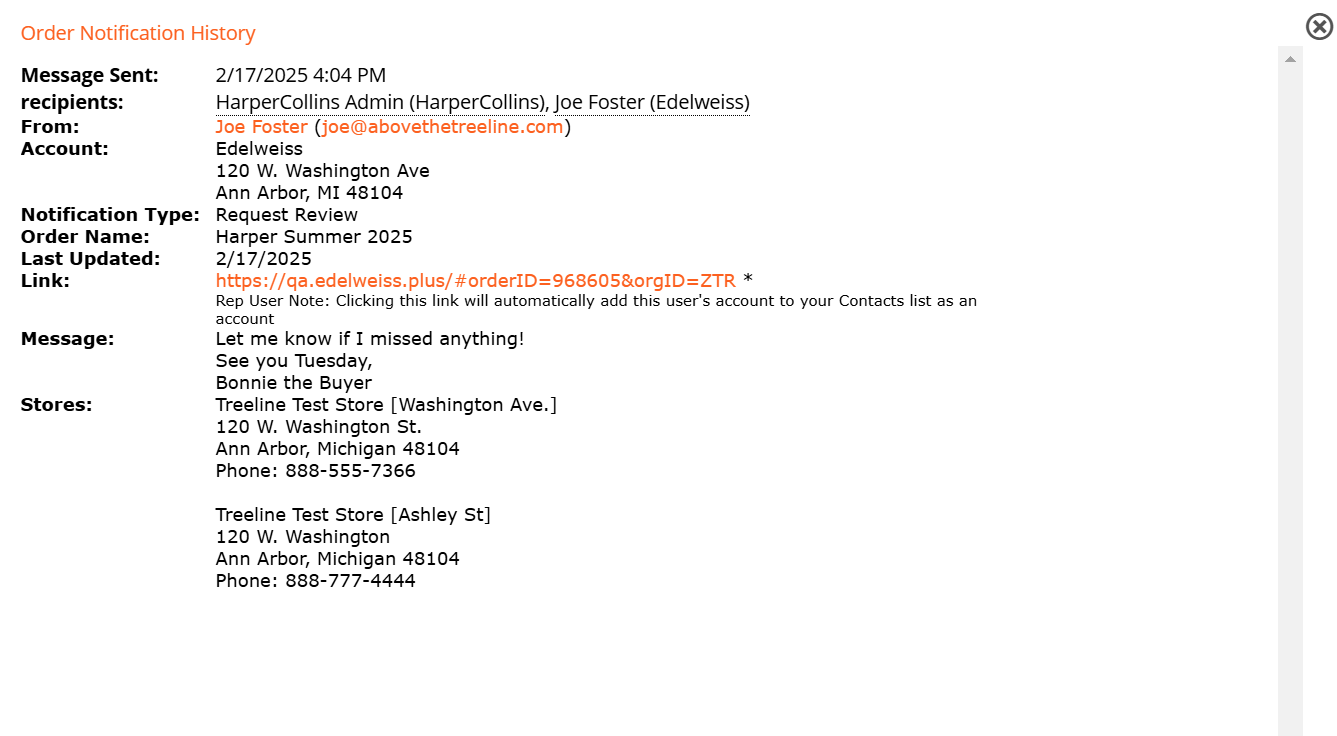
In Edelweiss, your orders will not be visible to your sales reps until you share those orders with the relevant sales rep(s). To share an order with your rep, they must first add you as a Contact. Just be sure to tell any new sales rep which email address you use to login to Edelweiss and they can get you connected on their end.
You can choose to share your order with your sales rep right when you create it, or after you’re finished with it. It’s up to you, of course, just don’t forget to do it later!
Here’s a document that explains the process of creating orders.
In that process, you’ll see a button for Shares. This allows you to share your order with a specific sales rep. They will not see your order until you share it with them. Again, you do not have to share it immediately, as you’re creating the order, but you’ll want to be sure and do so once you’re finished with the order if you don’t do it here.
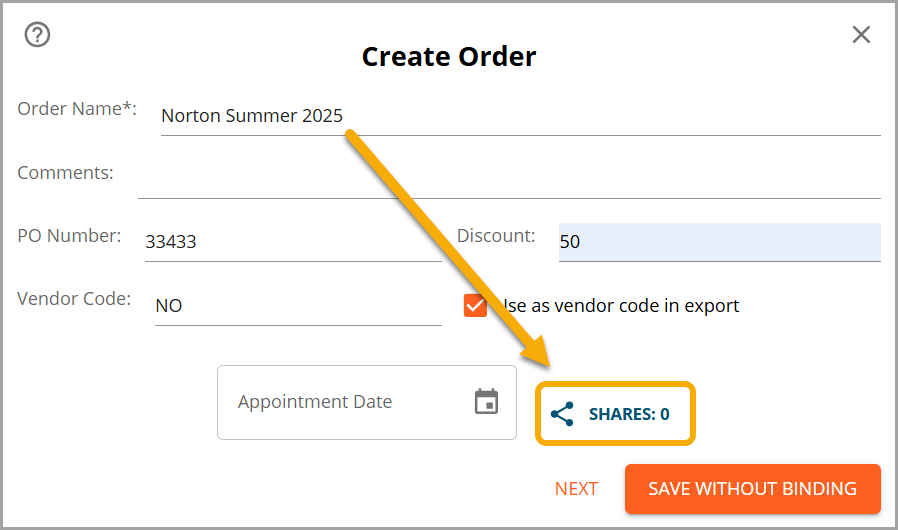
Clicking on the Shares icon will pull up a list of reps that currently have you listed in their Contacts. Simply select one (or more) with whom you’d like to share your order.
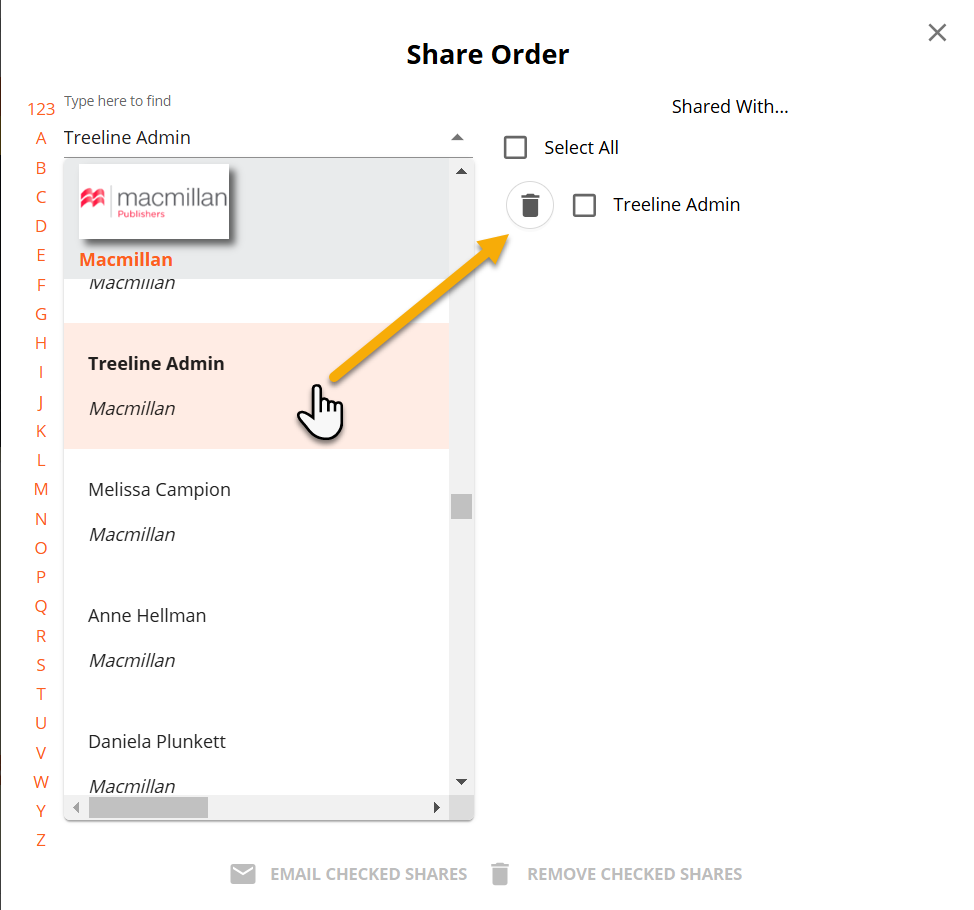
To share with your reps later:
On your Orders page, you’ll see any orders you’ve created, like so:
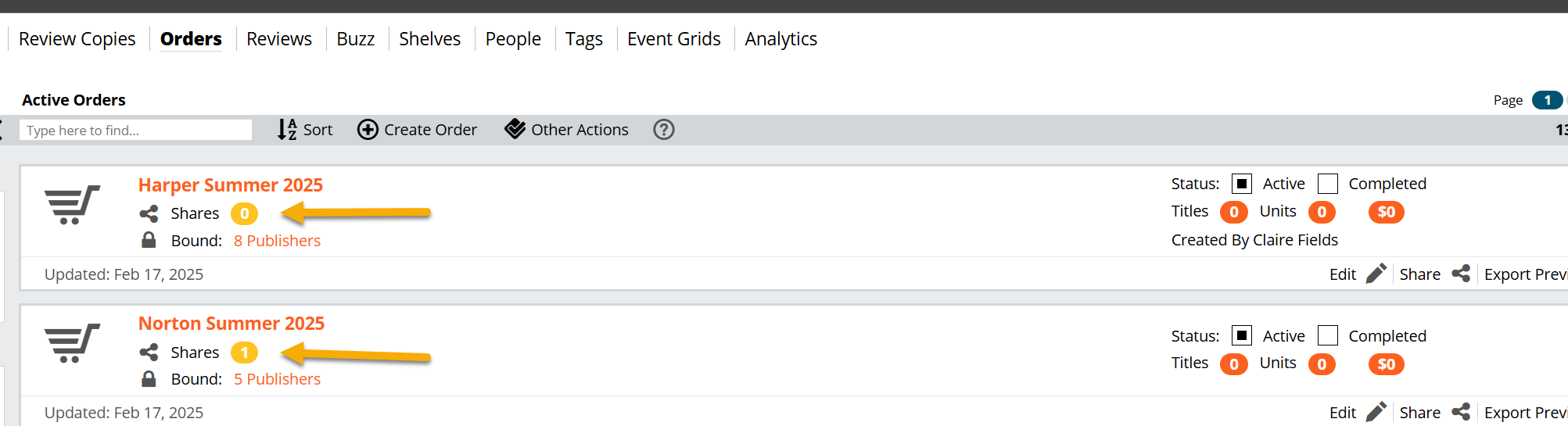
For this help document, we’re focusing on the Shares tool, indicated by the arrow in the image above. An order is private to you and your coworkers at this point. To share it with a sales rep, click the yellow circle or the “share” icon. You’ll pull up a list of sales reps who have you listed in their personal Edelweiss contacts list, listed according to the name of the publisher or rep group. So, you’ll find sales reps for HarperCollins listed under H, and reps for the rep group Abraham and Associates will be listed under A. Note, however, the Type Here to Find… field, highlighted below. You can also search for a rep by name. This is the quickest method.

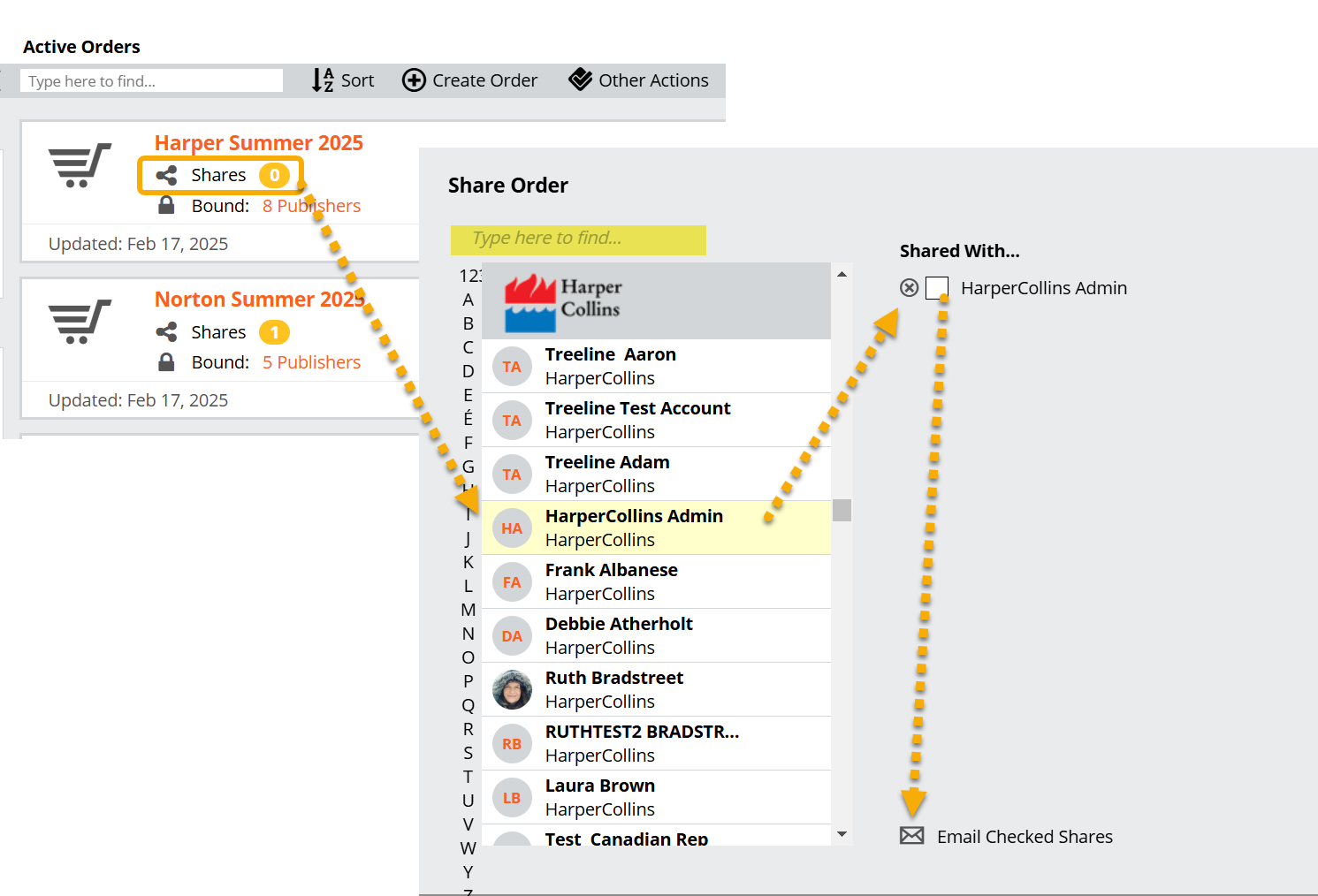
Again, if you do not see your sales rep listed there, you’ll want to ask them to add you to their Contacts. This is something you’d need to do just once.
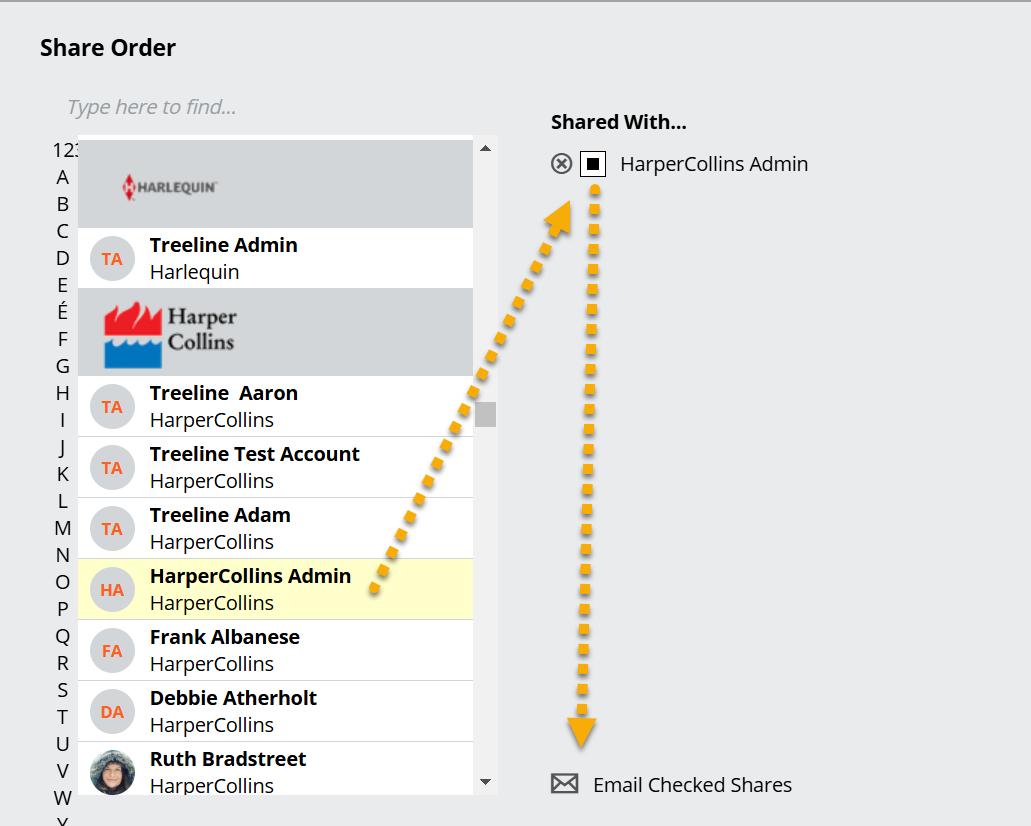
To share with a rep, just click on their name. Check the box next to their name if you’d like to send them an email, as well. They’ll also be alerted of your shared order in their own Notifications on their homepage.
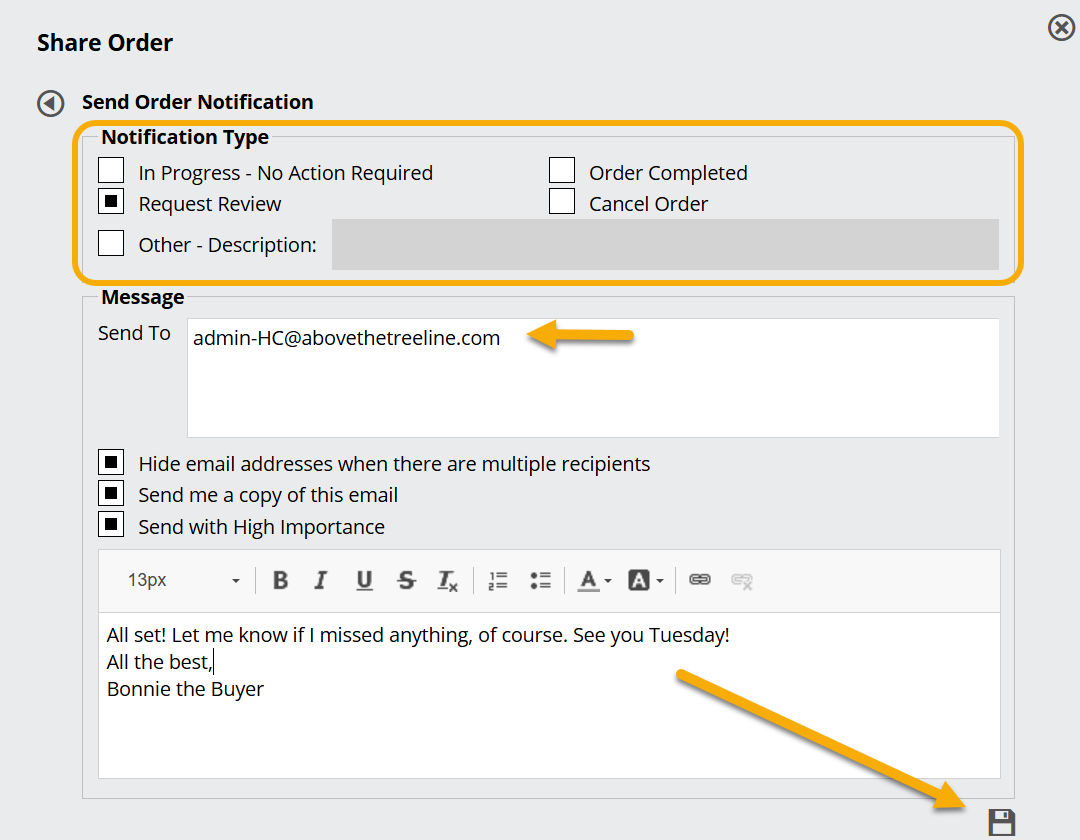
In the process of emailing an order to your reps, you’ll have the opportunity to send your rep an email alert. Basically, the options here allow you to let your rep know if your order is completed, if you’re just getting started, etc.
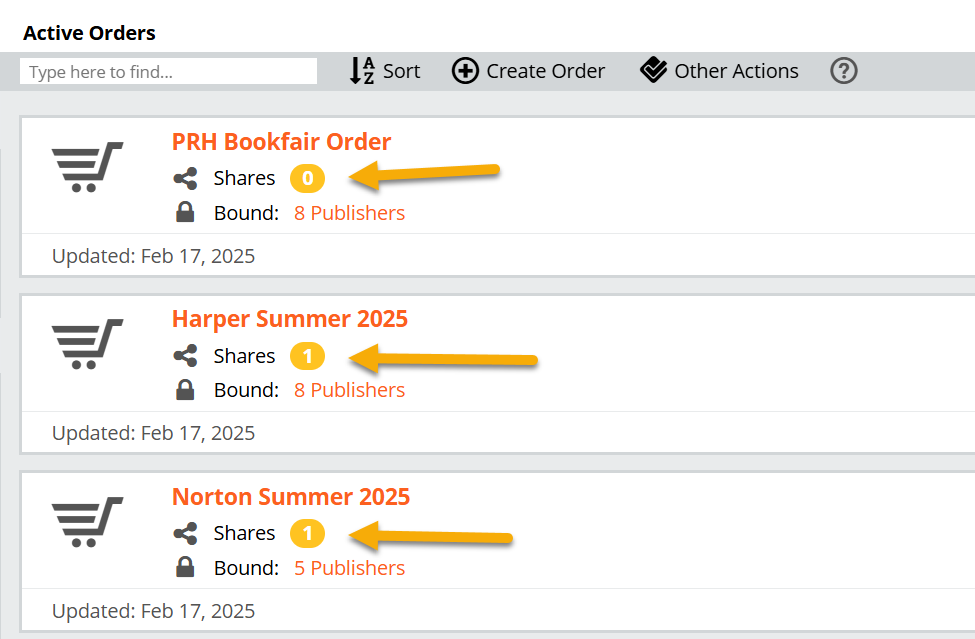
Once an order is shared, you’ll see an indication here of how many people you’ve shared that order with, if any:

You can see a history of these email notifications here:
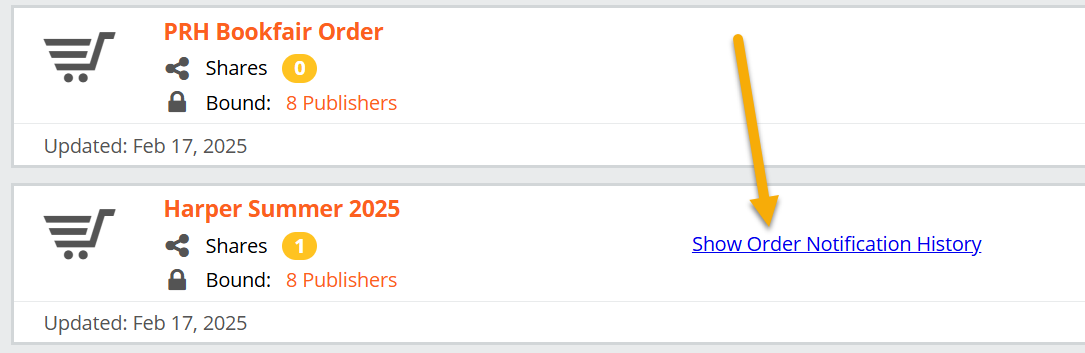
Click Show Order Notification History to see a copy of any emails you’ve sent in this way.